Ads Blocker1.5
Publisher Description
Introduction
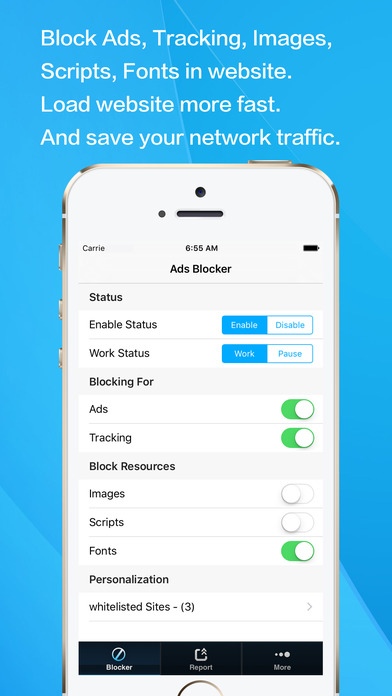
- Ads Blocker is a content blocker for iPhone & iPad designed to block Adverts, Tracking, and more. It can speed up your surfing, save data and battery life.
Why you'll need it?
- No Ads, No visual pollution.
- Speed up your surfing of 4x faster.
- Reduce your data consumption on Cellular & Wi-Fi by an average of 55% and more.
- Reduce CPU consumption, and extend battery life by an average of 20% and more.
Feature List
- Block search results Ads for quickly find the wanted results.
- Block banner Ads to load website quickly.
- Block pop-up Ads to load website quickly.
- Block tracking to protect your privacy.
- Update block data list automatically.
Use Steps
- Download and run Ads Blocker, wait some secs for updating to the newest data list.
- Go to System Settings > Safari > Content Blockers > Ads Blocker. Enable it.
- Enjoy it.
Requires iOS 9.0 or later. Compatible with iPhone 5s, iPhone 6, iPhone 6 Plus, iPhone 6s, iPhone 6s Plus, iPhone SE, iPhone 7, iPhone 7 Plus, iPad Air, iPad Air Wi-Fi + Cellular, iPad mini 2, iPad mini 2 Wi-Fi + Cellular, iPad Air 2, iPad Air 2 Wi-Fi + Cellular, iPad mini 3, iPad mini 3 Wi-Fi + Cellular, iPad mini 4, iPad mini 4 Wi-Fi + Cellular, 12.9-inch iPad Pro, 12.9-inch iPad Pro Wi-Fi + Cellular, 9.7-inch iPad Pro, 9.7-inch iPad Pro Wi-Fi + Cellular, and iPod touch (6th generation).
About Ads Blocker
The company that develops Ads Blocker is Zhang Jianhua. The latest version released by its developer is 1.5.
To install Ads Blocker on your iOS device, just click the green Continue To App button above to start the installation process. The app is listed on our website since 2015-09-28 and was downloaded 5 times. We have already checked if the download link is safe, however for your own protection we recommend that you scan the downloaded app with your antivirus. Your antivirus may detect the Ads Blocker as malware if the download link is broken.
How to install Ads Blocker on your iOS device:
- Click on the Continue To App button on our website. This will redirect you to the App Store.
- Once the Ads Blocker is shown in the iTunes listing of your iOS device, you can start its download and installation. Tap on the GET button to the right of the app to start downloading it.
- If you are not logged-in the iOS appstore app, you'll be prompted for your your Apple ID and/or password.
- After Ads Blocker is downloaded, you'll see an INSTALL button to the right. Tap on it to start the actual installation of the iOS app.
- Once installation is finished you can tap on the OPEN button to start it. Its icon will also be added to your device home screen.
